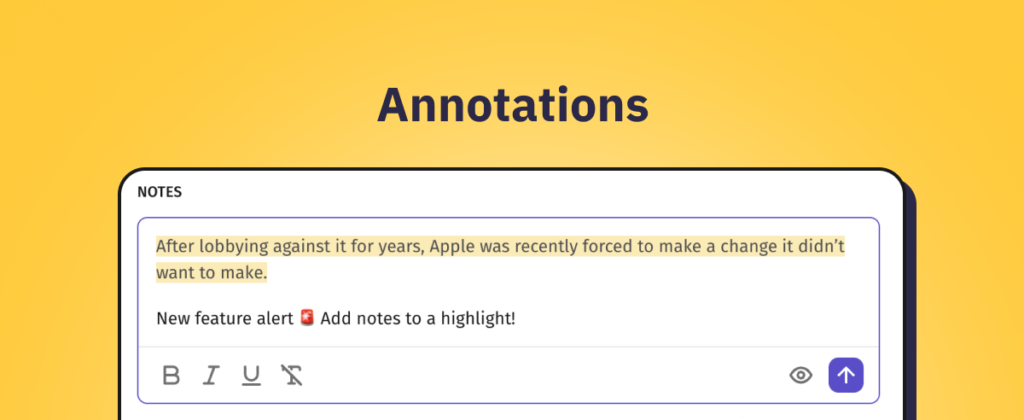
Revolutionize Your Note-Taking with the New Annotation Tool
In an era where digital information overload is the norm, capturing and organizing insights efficiently is paramount. The latest innovation in note-taking—the Annotation tool—promises to transform how you interact with articles and documents. Imagine highlighting a key passage and instantly attaching your thoughts, all within the same interface. This new feature, integrated with existing Notes functionality, allows you to create annotations that are visually marked and easily retrievable. Whether you’re a researcher, student, or professional collaborator, this tool is set to streamline your workflow and boost productivity.
What Exactly is the Annotation Tool?
At its core, the Annotation tool enables you to select any text within an article and add a personalized note directly to that selection. The highlighted text remains marked in yellow, serving as a visual cue for you and your team members. These annotations are then linked to your Notes, which are conveniently displayed at the bottom of the article and in the sidebar. This seamless integration ensures that your thoughts are always contextually connected to the source material.
How the Annotation Tool Enhances Collaboration and Organization
Gone are the days of scattered sticky notes or separate documents. The Annotation tool brings everything into one cohesive space. When you highlight text and add a note, it becomes part of a shared repository that team members can access. This fosters collaborative review and discussion, as everyone can see the highlighted sections and associated comments. Moreover, the quick filter “Notes” in the sidebar allows you to locate all annotations and notes effortlessly, making it simple to revisit key insights.
Key Features of the Annotation Tool
- Text Highlighting: Select any text and mark it with a yellow highlight for easy reference.
- Integrated Notes: Annotations are stored alongside your Notes at the bottom of articles and in the sidebar.
- Quick Filter: Use the “Notes” filter to find all annotations and notes in one place.
- Team Collaboration: Highlights and annotations are visible to team members, facilitating shared understanding.
Practical Applications of the Annotation Tool
The Annotation tool is versatile and can be applied across various scenarios. For students, it’s a powerful way to engage with academic papers, highlighting critical arguments and adding personal reflections. For professionals, it streamlines document review, allowing teams to comment on specific sections without altering the original text. Researchers can use it to tag important findings and link them to broader notes. In all cases, the tool enhances comprehension and retention by anchoring thoughts to the exact text that inspired them.
Getting Started with the Annotation Tool
Using the Annotation tool is intuitive. Simply mark the text with your cursor and choose “Add note to selection” to create an annotation. The highlighted text will remain marked, and your annotation will appear with your Notes. To learn more, refer to the introductory guide provided in the release notes. With just a few clicks, you can transform passive reading into active engagement.
Frequently Asked Questions About the Annotation Tool
What is the Annotation tool?
The Annotation tool is a feature that allows you to highlight text in an article and attach a note to it. The highlight and note are saved together, making it easy to reference later.
How do I create an annotation?
To create an annotation, select the desired text with your cursor, then choose “Add note to selection.” A note field will appear where you can type your thoughts.
Can I find my annotations easily?
Yes, all annotations are stored with your Notes at the bottom of the article and in the sidebar. You can also use the quick filter “Notes” to locate them quickly.
Are annotations visible to my team?
Yes, highlighted text and annotations are visible to members of your team, promoting collaboration and shared insights.
Is there a guide for using the Annotation tool?
Absolutely. An introductory guide is available to help you get started with annotations. You can find it linked in the release announcement.
Frequently Asked Meteorological Questions
The Annotation tool is a feature that allows you to highlight text in an article and attach a note to it. The highlight and note are saved together, making it easy to reference later.
To create an annotation, select the desired text with your cursor, then choose "Add note to selection." A note field will appear where you can type your thoughts.
Yes, all annotations are stored with your Notes at the bottom of the article and in the sidebar. You can also use the quick filter "Notes" to locate them quickly.